Setting up Relatiq Search from a Google product feed
Most Relatiq Search setups start the same way: a customer has a product catalogue somewhere, and the first real work is getting it into an index in a shape that search can rank well. For any shop already running Google Shopping ads, that work is mostly already done — the Google Merchant feed already contains titles, descriptions, categories, prices and images in a standard, predictable format. The import flow we shipped reads that feed directly and turns it into a working setup in two steps: paste a URL, review what it found.
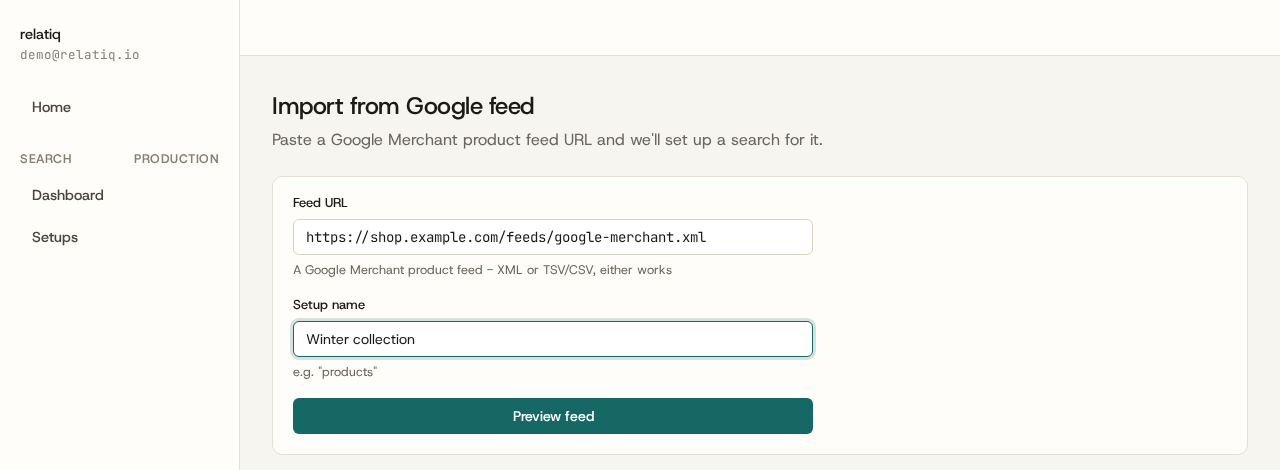
Paste a URL, see your products
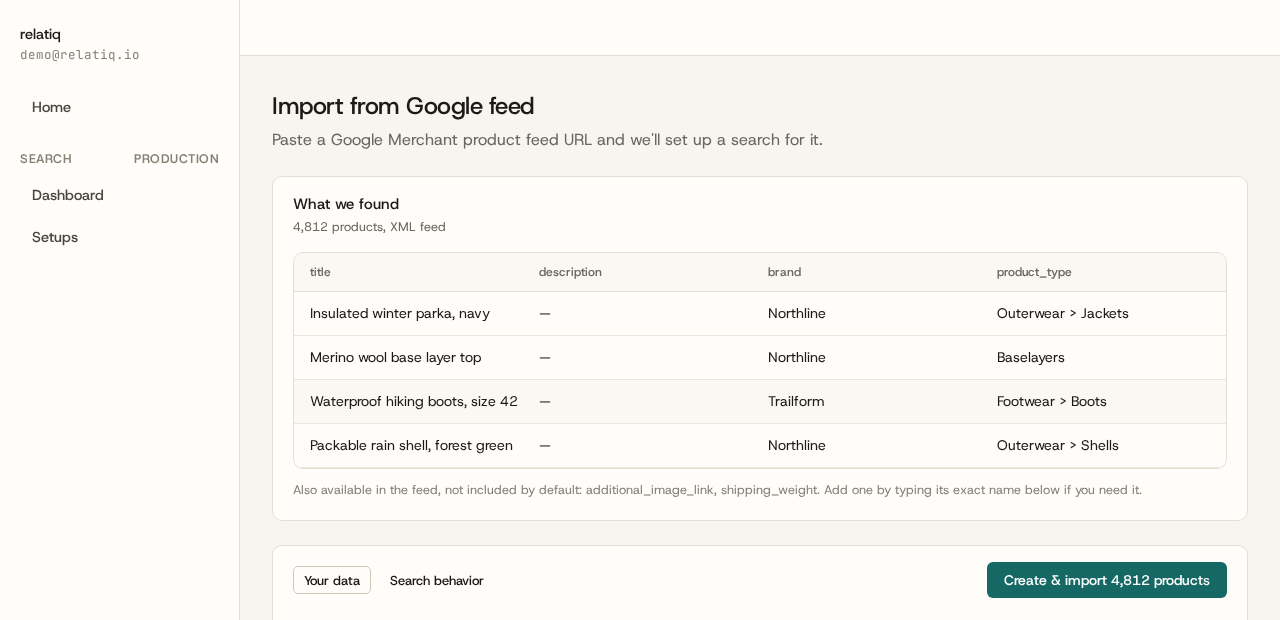
The import screen asks for two things: the feed URL (XML or a delimited TSV/CSV export both work) and a name for the setup. Fetching the feed immediately shows a preview — a sample of actual products from the catalogue, not a placeholder — plus how many items the feed contains and whether it parsed as XML or delimited text.
The field mapping is already done
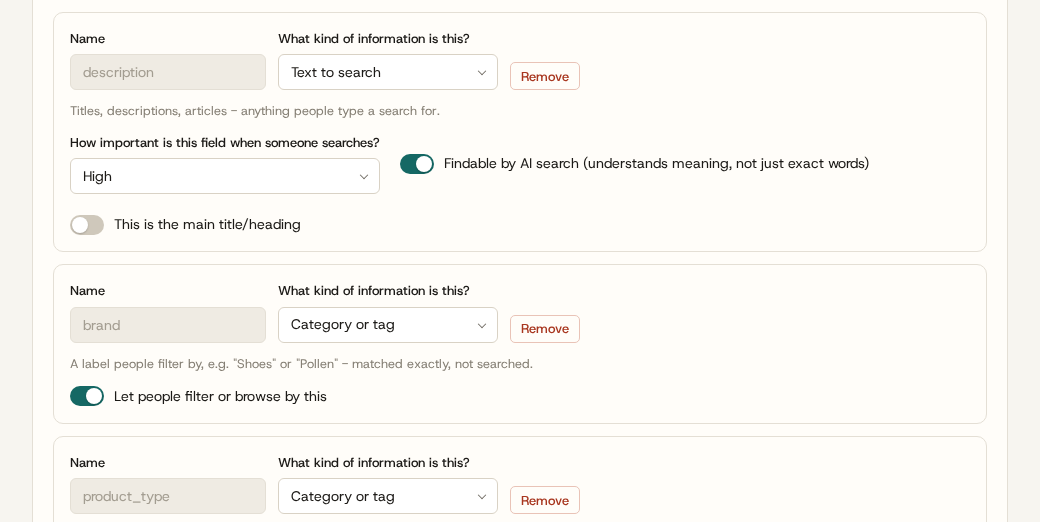
This is the part that used to be manual work: deciding which feed fields become searchable text, which become filters, and which get ignored. The importer recognizes the standard Google Merchant attributes — title, description, brand, product type, price, availability, color, size, material and more — and suggests sensible defaults for each: title and description go in as searchable text, brand and category become filterable facets, noisier fields like shipping_weight or additional_image_link are detected but left unchecked rather than cluttering the index. Anything the feed contains but the defaults skip is still listed, so it can be added by name if a particular catalogue needs it.
The defaults are a starting point, not the final word — every field stays editable. If a catalogue's description text is detailed enough to carry real search weight, turning on "findable by AI search" and raising its importance from Normal to High takes two clicks, right there in the same list.
Choosing how search should behave
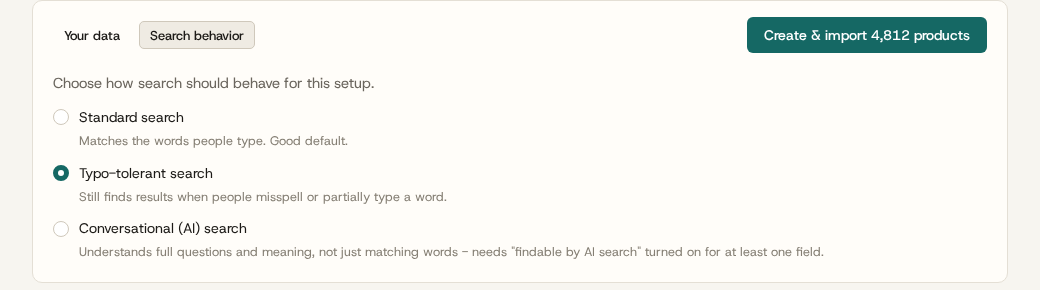
Before importing, there's one more choice: standard search (matches the words people type), typo-tolerant search (still finds results through misspellings or partial words), or conversational AI search (understands full questions, once at least one field is marked findable by AI search). The importer pre-selects typo-tolerant as a sane default and marks the main text field for AI search automatically, so conversational search is already available to switch on rather than something to configure from scratch later.
From review to live index in one click
"Create & import" does three things at once: writes the index configuration, applies it, and starts pulling every product from the feed in the background, with a live progress bar tracking items imported against the feed's total. What used to be a custom export, a mapping step and someone checking that titles and prices landed correctly is now a review screen and a single button — the same feed a shop already maintains for ads becomes a live, searchable index the same day.